TikTok LIVE Stream Key: How to Go LIVE with OBS (No LIVE Studio Needed)
A stream key lets you go LIVE on TikTok straight from OBS, with no TikTok LIVE Studio needed. Here is what it is, how to set it up, and how QuakesLegacy creators can apply for one.
If you stream from a PC, you have probably heard of TikTok LIVE Studio, TikTok's own desktop streaming app. It works, but a lot of creators already know and love OBS Studio, with their scenes, overlays, alerts and plugins set up exactly how they like them.
The good news is that you don't have to choose. With a TikTok stream key, you can go LIVE on TikTok straight from OBS, with no TikTok LIVE Studio needed. This guide explains what a stream key is, how to set it up in OBS, and how QuakesLegacy creators can apply for one.
What is a TikTok stream key?
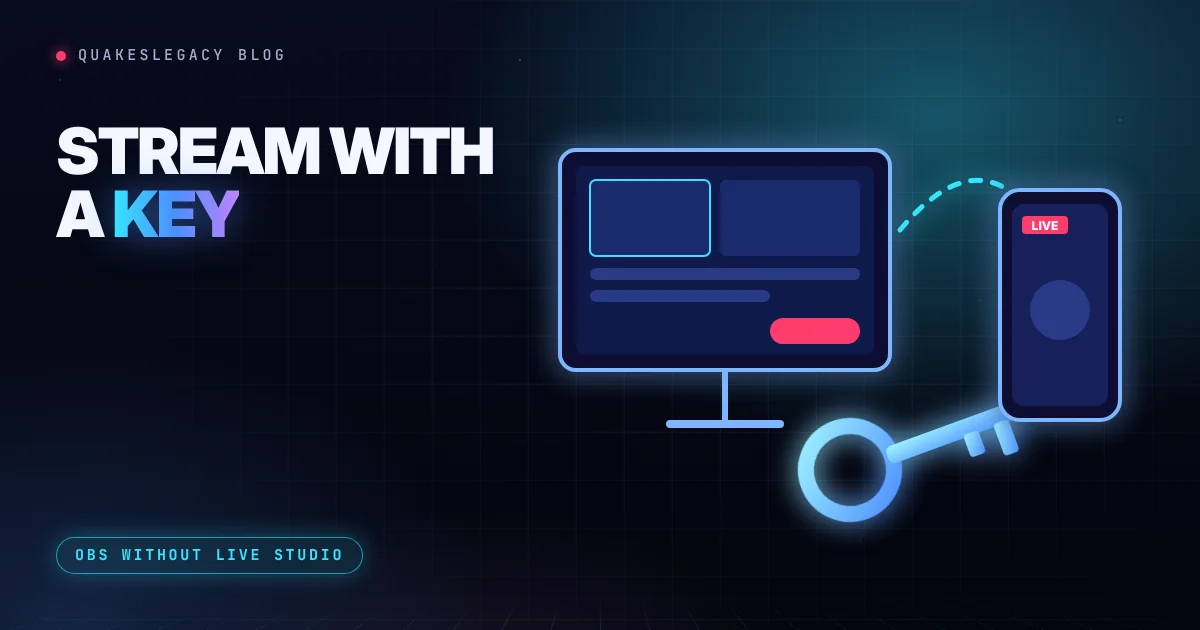
A stream key is a private code that tells TikTok which account a video stream belongs to. It comes with a server URL (sometimes called the RTMP URL). Together they work like an address and a password:
- The server URL tells OBS where to send your stream.
- The stream key tells TikTok that the stream is yours.
You paste both into OBS, press Start Streaming, and your stream appears as a TikTok LIVE on your account.
Why stream with OBS instead of TikTok LIVE Studio?
TikTok LIVE Studio is fine for getting started, but OBS gives you more control:
- Your own scenes and layouts. Switch between a camera scene, a gameplay scene and a "be right back" screen in one click.
- Overlays and alerts. Add gift alerts, goal bars and chat boxes from tools you already use.
- Plugins. OBS has a huge library of free plugins for audio, filters and transitions.
- Multi-platform setups. If you already stream elsewhere, you can keep one familiar setup instead of learning a second app.
- Fine control over quality. Choose your own encoder, bitrate and resolution to suit your PC and internet.
If you are new to streaming from a computer, our TikTok LIVE setup guide covers the camera, mic and lighting side.
How to get a TikTok stream key
Not every TikTok account can create a stream key on its own, and access depends on TikTok's own rules. This is where an agency can help.
QuakesLegacy can offer creators stream keys, so you can stream without the need for TikTok LIVE Studio. We take applications in our Discord server:
- Read about the offer on our stream keys page.
- Join the QuakesLegacy Discord at discord.gg/quakeslegacy.
- Follow the instructions in the server to apply for a stream key.
- Our team will review your application and get back to you in Discord.
Not with an agency yet? Apply to join QuakesLegacy to get support with stream keys and the rest of your LIVE journey.
How to set up your TikTok stream key in OBS
Once you have your server URL and stream key, setting up OBS takes a couple of minutes.
- Download and install OBS Studio from the official OBS website if you don't have it yet.
- Open OBS and go to Settings, then Stream.
- Set Service to Custom.
- Paste your server URL into the Server box.
- Paste your stream key into the Stream Key box.
- Click Apply, then OK.
That is it. When you click Start Streaming, OBS sends your stream to TikTok.
Set up OBS for vertical video
Most TikTok viewers watch on their phones, so a vertical stream fills the screen and looks far better than a wide one.
- Go to Settings, then Video.
- Set Base (Canvas) Resolution to 1080x1920.
- Set Output (Scaled) Resolution to 1080x1920, or 720x1280 if your PC or internet struggles.
- Set Common FPS Values to 30. Use 60 only if your setup handles it comfortably.
- Rearrange your scenes so your camera, overlays and text fit the tall layout.
Recommended OBS output settings
Go to Settings, then Output, and set Output Mode to Advanced if you want full control. As a starting point:
- Encoder: a hardware encoder (NVIDIA NVENC, AMD or Apple) if you have one, otherwise x264.
- Rate control: CBR (constant bitrate).
- Bitrate: start around 3,000 to 4,000 kbps for 720p and around 4,500 to 6,000 kbps for 1080p, and keep it well under your upload speed.
- Keyframe interval: 2 seconds.
- Audio: 128 to 160 kbps, 48 kHz.
Run an internet speed test before you stream. If your upload speed is low, lower the bitrate or the resolution rather than risk a stream that keeps buffering.
Do a test stream first
Before a big stream or a LIVE battle, do a short test:
- Start streaming and check your LIVE from your phone, from a second account if you can.
- Check the picture is the right way up and nothing important is cut off.
- Check your mic levels and that game or music audio isn't drowning you out.
- Watch the OBS status bar for dropped frames. If you see a lot, lower your bitrate.
Keep your stream key safe
Your stream key is like a password to your LIVE. Treat it that way:
- Never show it on stream. Close the OBS settings window before you go LIVE, and be careful when screen sharing.
- Don't share it with anyone you don't completely trust, including people offering "free setup help".
- Ask for a new key if you think yours has leaked.
- Remember that everything you stream through the key still has to follow TikTok's Community Guidelines.
Common stream key problems
OBS says it failed to connect. Check you pasted the full server URL and stream key with no extra spaces, and that Service is set to Custom.
The stream is sideways or has black bars. Your canvas is probably still set to a wide resolution. Switch to 1080x1920 and rearrange your sources.
The stream keeps buffering. Your bitrate is likely too high for your upload speed. Lower it and test again.
My key stopped working. Stream keys can change or expire. Ask the QuakesLegacy team in Discord for help.
Start streaming from OBS
A stream key gives you the freedom to stream TikTok LIVE from the setup you already know, without TikTok LIVE Studio. If you are a QuakesLegacy creator, see the stream keys page and apply in our Discord. If you aren't with us yet, apply to join QuakesLegacy and our team will help you get set up.
Frequently asked questions
What is a TikTok LIVE stream key?
A stream key is a private code that, together with a server URL, lets streaming software like OBS send your video straight to your TikTok LIVE. You paste both into OBS instead of using TikTok LIVE Studio.
Can I stream on TikTok with OBS without TikTok LIVE Studio?
Yes, if you have access to a TikTok stream key. With a server URL and stream key you can go LIVE from OBS Studio or similar software, without opening TikTok LIVE Studio.
How do I get a TikTok stream key?
Not every account can create a stream key on its own. QuakesLegacy can offer stream keys to creators, and we take applications for them in our Discord server.
Is it safe to share my stream key?
No. Anyone with your stream key can stream to your account, so keep it private, never show it on stream, and ask for a new one if you think it has leaked.
What OBS settings should I use for TikTok LIVE?
Use a vertical canvas such as 1080x1920 at 30 fps, the x264 or a hardware encoder, and a bitrate your upload speed can handle comfortably. Test with a short stream before a big one.