How to Set a LIVE Goal on TikTok (and Make Your Stream More Interactive)
A LIVE goal shows viewers what you are working towards, right on your stream. Here is how to set one up, step by step, and how to choose a good one.
- Before you go LIVE, tap the plus button and swipe across to LIVE.
- On the LIVE setup screen, find the option to add a goal.
- Choose what you want your viewers to work towards and set your target.
- Confirm your goal and start your LIVE.
- The goal appears on your stream, so viewers can see what you are working towards and help you reach it.
Want to make your TikTok LIVE more interactive? One of the simplest ways is to set a LIVE goal. A goal puts a visible target on your stream, so viewers can see what you are working towards and help you get there.
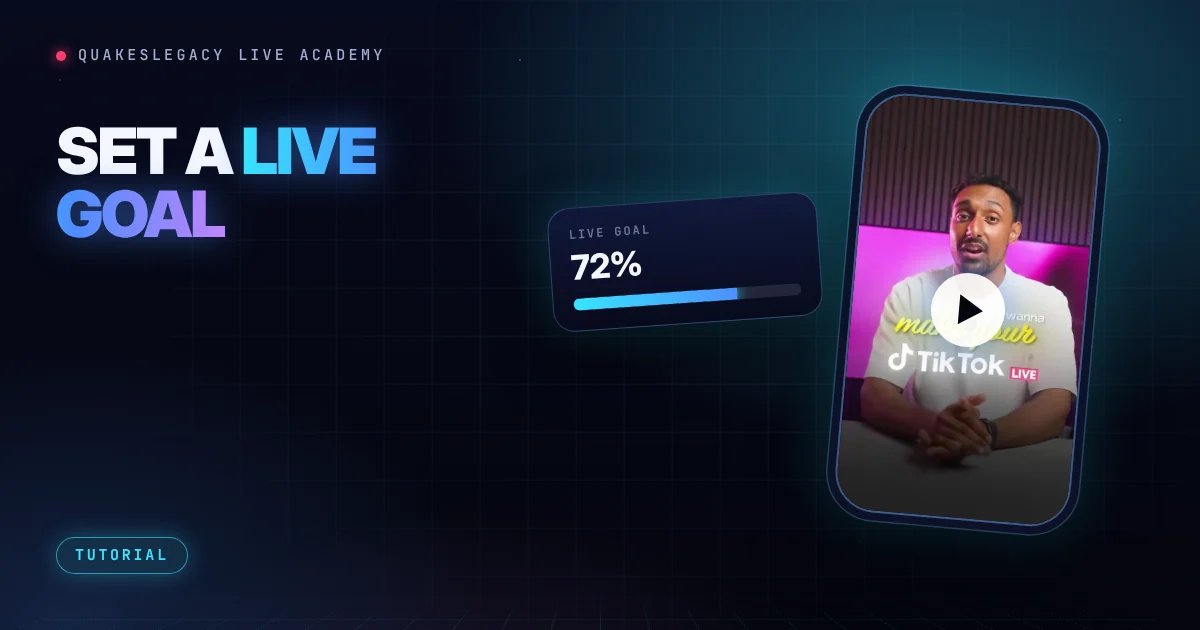
The short video above, from QuakesLegacy UK, shows exactly where to find it. Below are the same steps written out, plus some ideas for choosing goals that work.
What is a TikTok LIVE goal?
A LIVE goal is a target you set for your stream that viewers can see and contribute to. It appears on screen while you are LIVE, with progress shown as your viewers help.
Goals turn a stream into a shared effort. Instead of watching passively, viewers have something to work towards with you, and they can see the effect of their support in real time.
LIVE features vary by region, account and app version, so the exact options you see may differ slightly from the video.
How to set a LIVE goal, step by step
- Open the LIVE screen. Before starting your LIVE, tap the + button and swipe across to LIVE.
- Find the goal option. On your LIVE setup screen, look for the option to add a goal.
- Choose your goal and target. Pick what you want your viewers to work towards and set the target.
- Confirm and go LIVE. Once everything looks good, confirm your goal and start your LIVE.
- Watch it on your stream. Your goal appears on screen, so viewers can see what you are working towards and help you reach it.
If you are still getting set up, our guide on how to go LIVE on TikTok covers the basics.
Tips for choosing a good goal
- Make it achievable. A goal your community can actually reach in one stream feels exciting. One that never moves can feel discouraging.
- Tie it to something fun. Let viewers know what happens when the goal is reached, such as a song request, a challenge or a special segment. Keep any challenge safe and within the Community Guidelines.
- Mention it regularly. New viewers join all the time. Remind people what the goal is and how close you are.
- Celebrate when you hit it. Thank everyone who helped and make the moment feel like a shared win.
Keep it positive
Goals work best when they feel like a team effort, not pressure. Avoid repeatedly asking for gifts or guilt-tripping viewers. TikTok's rules restrict manipulative or misleading requests for gifts; our guide to TikTok LIVE guidelines explains what to avoid.
Pair goals with other features
Goals combine well with other LIVE features:
- The Gift Gallery gives viewers specific gifts to collect together.
- Battles add a competitive moment that can push a goal over the line.
- Overlays from tools such as BetterTok can show goal progress on screen if you stream from a computer. QuakesLegacy creators get BetterTok at a creator rate; see our BetterTok post.
Learn more
This tutorial is part of the free QuakesLegacy LIVE Academy. It was made by QuakesLegacy UK, which works directly with LIVE creators across the UK; see the UK page for more.
Want more help growing your TikTok LIVE? You can apply to join QuakesLegacy. It is free to join.
Frequently asked questions
How do I add a goal to my TikTok LIVE?
Before you go LIVE, tap the plus button and swipe to LIVE. On the LIVE setup screen, find the option to add a goal, choose what you want viewers to work towards, set your target and confirm it. Then start your LIVE.
Can viewers see my TikTok LIVE goal?
Yes. Once set, your goal appears on your stream so viewers can see what you are working towards and help you reach it.
Why don't I see the LIVE goal option?
LIVE features can depend on your region, account eligibility and app version. Update the TikTok app first, and check the LIVE setup screen again before you go live.