How to Add a Moderator on TikTok LIVE (and Who to Choose)
When your chat gets busy, a moderator makes LIVE much easier. Here is how to add one in a few taps, what they can do, and who to trust with the role.
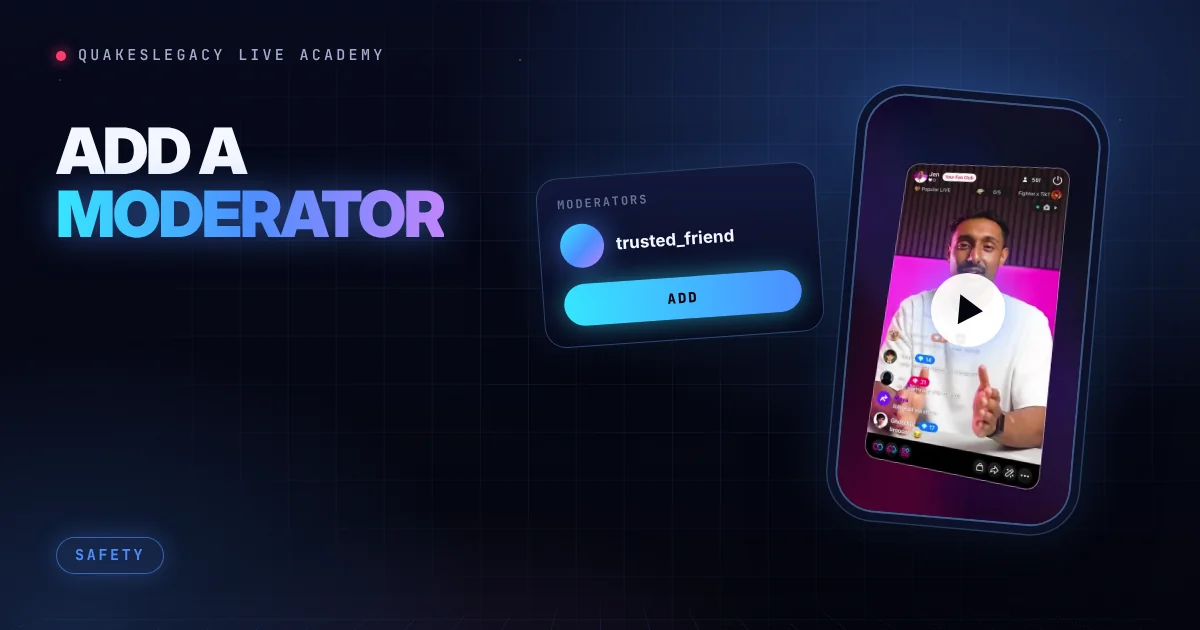
- Start your LIVE: tap the plus button and select LIVE.
- Open your LIVE settings and tap Moderators.
- Search for someone you trust and tap Add.
- Your moderator can now help manage the chat, remove unwanted comments and deal with disruptive viewers while you entertain.
Going LIVE on TikTok is a great way to connect with your viewers. But when your chat gets busy, it is hard to entertain, read comments and deal with problems all at once. That is what moderators are for.
The short video above, from QuakesLegacy UK, shows how to add one. Here are the same steps written out, along with advice on choosing the right person.
What does a TikTok LIVE moderator do?
A moderator helps you look after your stream while you focus on your content. Once added, a moderator can:
- help manage the chat,
- remove unwanted comments,
- and deal with disruptive viewers.
That keeps your LIVE a good place to be for everyone else, and means you don't have to stop mid-stream to handle trolls.
How to add a moderator, step by step
- Start your LIVE. Tap the + button and select LIVE.
- Open your settings. Open your LIVE settings and tap Moderators.
- Find the person. Search for someone you trust.
- Add them. Tap Add.
That's it. Your moderator can now help manage your chat while you entertain your audience. The exact layout of the settings can vary with app version and region.
Only choose people you trust
Moderator access is real responsibility. We recommend only giving it to people you know and trust. You definitely don't want to make just anyone a moderator.
Good choices include:
- a friend or family member who watches your streams,
- a long-time viewer you know well and who understands your community,
- a fellow creator you collaborate with.
Talk to them first about how you want chat handled. For example, what counts as spam, when to remove someone, and what you would rather handle yourself.
Other tools that help
Moderators work best alongside TikTok's other safety tools:
- Keyword filters hide comments containing words you choose.
- Comment settings control who can comment.
- Muting and removing viewers handles repeat problems.
Our guide to TikTok LIVE tips for beginners recommends adding a moderator early, and our TikTok LIVE guidelines guide explains how a well-moderated chat also helps keep your account in good standing.
Learn more
This tutorial is part of the free QuakesLegacy LIVE Academy. It was made by QuakesLegacy UK; see the UK page for more.
If you want more support with your LIVE, you can apply to join QuakesLegacy. It is free to join.
Frequently asked questions
How do I add a moderator on TikTok LIVE?
Start your LIVE by tapping the plus button and selecting LIVE. Open your LIVE settings and tap Moderators, then search for someone you trust and tap Add.
What can a TikTok LIVE moderator do?
A moderator can help manage the chat, remove unwanted comments and deal with disruptive viewers, so you can focus on your stream.
Who should I make a moderator?
Only give moderator access to people you know and trust, such as a friend or a long-time viewer you know well. Don't make just anyone a moderator.